# Agoda
Source: https://docs.bedmerge.com/channels/agoda
Connect your property to Agoda through Bedmerge
## Overview
Agoda is one of Asia's leading online travel agencies. Connect your property to reach millions of travelers through Bedmerge's Channex integration.
You must have a direct contract with Agoda for your property before connecting.
## Step 1: Enable Channel Manager in Agoda
Before connecting, enable channel manager mode in your Agoda account:
Log into Agoda YCS and go to **Settings > Property Settings**
Click **"Optional Settings"**
Tick the **"enable channel manager mode"** checkbox
Choose **Channex** from the dropdown list
Click "Save" to apply changes
If you have issues, contact Agoda support through their Extranet messaging to request Channex connection.
## Step 2: Create Agoda Channel
In Bedmerge, navigate to **Settings > Integrations > Channels**
* Click "Create New Channel"
* Select **"Agoda"**
* **Title**: Name for this connection (e.g., "Main Property - Agoda")
* **Property**: Choose your property
* **Hotel ID**: Enter your Agoda Hotel ID
Click "Test Connection" to verify access
## Step 3: Map Rooms and Rates
Agoda uses **multi-occupancy mapping** - you need to map rates for different guest counts.
Click the "Mapping" tab after successful connection
Match each Bedmerge room to Agoda room type
For each room type, map rates for:
* 1 Person Rate
* 2 Person Rate
* 3 Person Rate
* And so on...
Ensure no "unmapped" items remain
Click "Save" to confirm mapping
### Multi-Occupancy Example
```
Room: Deluxe Double
├─ 1 Person → Single Rate
├─ 2 Persons → Standard Rate
└─ 3 Persons → Triple Rate
```
If you don't support variable occupancy pricing, you can map the same rate to all occupancy levels.
## Step 4: Activate Channel
Verify all rooms and occupancy levels are mapped
Click "Actions" > "Activate"
## Managing Bookings
View all Agoda reservations in your **Bookings** tab:
* Guest details
* Check-in/check-out dates
* Number of guests
* Total booking value
* Commission amount
## Managing Rates
Update Agoda rates in the **Rates** tab:
* Set rates for each occupancy level
* Seasonal adjustments
* Last-minute pricing
* Special promotions
**Sync Time**: Rates update on Agoda within 15-30 minutes
## Best Practices
Ensure all property information, photos, and amenities are complete in Agoda before connecting.
Maintain rate parity with other channels as required by Agoda policies.
Monitor and respond to guest reviews to improve property reputation.
## Troubleshooting
**Solutions**:
* Verify Hotel ID is correct
* Confirm channel manager mode is enabled in YCS
* Check Channex is selected in Agoda settings
* Contact Agoda support to verify connection
**Solutions**:
* Verify all occupancy levels are mapped
* Check channel is activated
* Review sync logs
**Solutions**:
* Check all room types are mapped
* Verify all occupancy levels are mapped
* Re-save mapping configuration
## Resources
* **Agoda YCS**: [https://ycs.agoda.com](https://ycs.agoda.com)
* **Channex Agoda Guide**: [https://docs.channex.io/channel-mapping-guides/agoda](https://docs.channex.io/channel-mapping-guides/agoda)
# Airbnb
Source: https://docs.bedmerge.com/channels/airbnb
Guide on the Airbnb connection and mapping
1. Login to Airbnb
2. Create the Airbnb Channel
3. Connection Errors
4. Multi Property
5. Mapping Airbnb Listings
6. Edit the listings
7. Price Per Person with Airbnb
## Login to the Airbnb Account
To connect Airbnb it works with an Oauth model, this means you need to have login access to the account to be able to connect it to Bedmerge.
You should have login access to the users account to connect it with Bedmerge. You can ask the user to change their password after connection for security reasons and it will not affect the connection.
Make sure you are logged in to the correct Airbnb account before you try to connect.
## Create the Airbnb Channel
1. Go to: [https://app.bedmerge.com/channels](https://app.bedmerge.com/channels) and click on the create button
2. Channel: Choose "Airbnb"
3. Title: Enter the name or note on the connection
4. Choose which properties that will connect to the channel, this can be 1 property or multiple properties.
 Once you have filled in all required fields the "Connect to Airbnb" button will become active.
If there is already another channel manager or PMS connected to Airbnb the connection will not complete. You should disconnect any connection before trying to connect Bedmerge.
**Min Stay Type:** This setting is so you can choose which min stay values you send to Airbnb. You should check since Bedmerge supports 2 types of minimum stay and Airbnb can only have 1.
Airbnb works on "Arrival" type of Min Stay. This setting just chooses which numbers we send over and doesn't change the min stay logic.
**Send Booking Notification Email:** This is optional if you would like Bedmerge to send an email after a booking (New, Modification and Cancellation)
**Host ID:** This will be empty, once connection is active it will show the Host ID here.
**Copy Link:** If you have no access to the Airbnb account but need to setup on behalf of the host. Copy the link and provide to them. They can accept the connection and let you know if it was completed. Then the channel should be created.
 After you press "Connect to Airbnb" button you will be taken to Airbnb page to confirm the connection. You should check if it is the correct account and accept. You will then be redirected back and we will show the connected text instead of the button.
### Connection Errors
If you get any issues to connect it's usually only a few possible things
1. There is already a Channel Manager connected, they will usually tell you this error on top of the screen. You can go to setting and into privacy options to disconnect an old channel manager.
2. Missing Host info, this can block connection if the account is missing email verification or some other important details. They will usually notify you what is the problem
If you require help on connecting please take a video or capture images of the error before reaching out since it's usually on the Airbnb side.
## Multi Property
If you have multiple properties then you can add them in this section. Add all the properties to the channel and they you can map them to the lisitng in the mapping page.
## Mapping Airbnb Listings
Once the connection is active
Click on the "Mapping" tab at the top to see the mapping.
Each listing will show as "not mapped" and It you just need to click on it to map.
Once you click on "not mapped" you will see a drop down to select what room and rate to map it with
You must choose both a room and a rate plan.
If you have different prices depending on how many people are staying then you should map your lowest occupancy rate plan like the 1 person rate. There will be settings later to set how much extra to charge per person.
In this example the price is for the whole apartment so they mapped the highest rate.
 Once you have mapped the listings click the Save button.
## Edit the listings
Once you have mapped the listings you can edit the listing to make sure the settings are correct.
Click on the "Listing" tab
You will notice the listing name first, then you will see "Published" or "Unpublished" You can click on it to change the status.
The second option is "Price Settings"
The details are pulled from the listing, so mostly it is to check they are correct. You can edit also. These settings are now **not** editable in Airbnb!
**Currency** - Select the currency of your listing
**Default Daily Price** - Whatever is set here is the default price per night
**Default Weekend Price** - Whatever is set here is the default price per night
Default Price & Weekend Price is just the default setting, the price per night will be synced from the room/rate chosen in the mapping.
**Monthly Stay Discount** - How much to discount for a 1 month stay
**Weekly Stay Discount** - How much to discount for a 1 week stay
In the Airbnb admin, It it possible to set up other length of stay discounts also from 2 to 60+ nights.
**Price Per Extra Guest** - How much extra per guest from included guests
**Guests Included** - How many guests are included in the price per night
**Security Deposit** - How much will Airbnb keep as a security deposit
**Cleaning Fee** - What is the cleaning fee for the listing, this amount will be added to the final bill.
Next is "Availability Settings"
**Number of Days**: Choose how many days in advance the listing should be available.
If the setting is on "Unavailable by Default" it is incompatible with Bedmerge. You should choose either all dates or a number.
**Number of Hours** - How many hours notice you need for bookings so you don't get last minute bookings
**Preparation Time** - How long a gap do you need before accepting a new guest
**Max Nights** - What is the maximum length of a booking you would like, if you want long term stays then set a high number.
**Min nights** - Minimum length of stay for a booking
These restrictions are just default settings, Bedmerge will pass the min stay and max stay for each night from the Room/Rate plan in mapping.
Currently we send Min Stay Arrival restriction to Airbnb, if your property is using Min Stay Through it will not be sent. We will add a selector soon to choose which to send.
**Checkin Dates**: This is default settings for which days are allowed for checkin
**Checkout Dates**: This is default settings for which days are allowed for checkin
These settings will be overwritten by Bedmerge daily from the CTA (Closed to Arrival) and CTD (Closed to Departure) restrictions.
**Min Nights Per Week** - Default settings for min stay per weekday
## Price Per Person with Airbnb
Airbnb allows you to map only 1 rate plan. So essentially you can send just 1 price only, to have different prices per person you will need to change settings in the Airbnb listing.
Example: 8 person room and you have different prices for 4,5,6,7 & 8 persons.
In this example you should send the lowest price (2 persons) to Airbnb
Then edit the "Pricing Settings" and set included persons to 4. You can find this settings in the channel by editing the channel.
 Then set "Price per extra guest" to whatever the increase per person should be.
For Airbnb you can only have 1 setting for price per extra person, you cant have different price for 1st extra or 2nd extra etc. They will all be the same.
# Booking.com
Source: https://docs.bedmerge.com/channels/booking-com
Guide to connect and map booking.com to Bedmerge
## Request connection to Bedmerge in booking extranet
Login to the admin for the property here: [https://account.booking.com/](https://account.booking.com/)
This step is best done by the property since booking.com have 2 step security with passcodes sent to the phone.
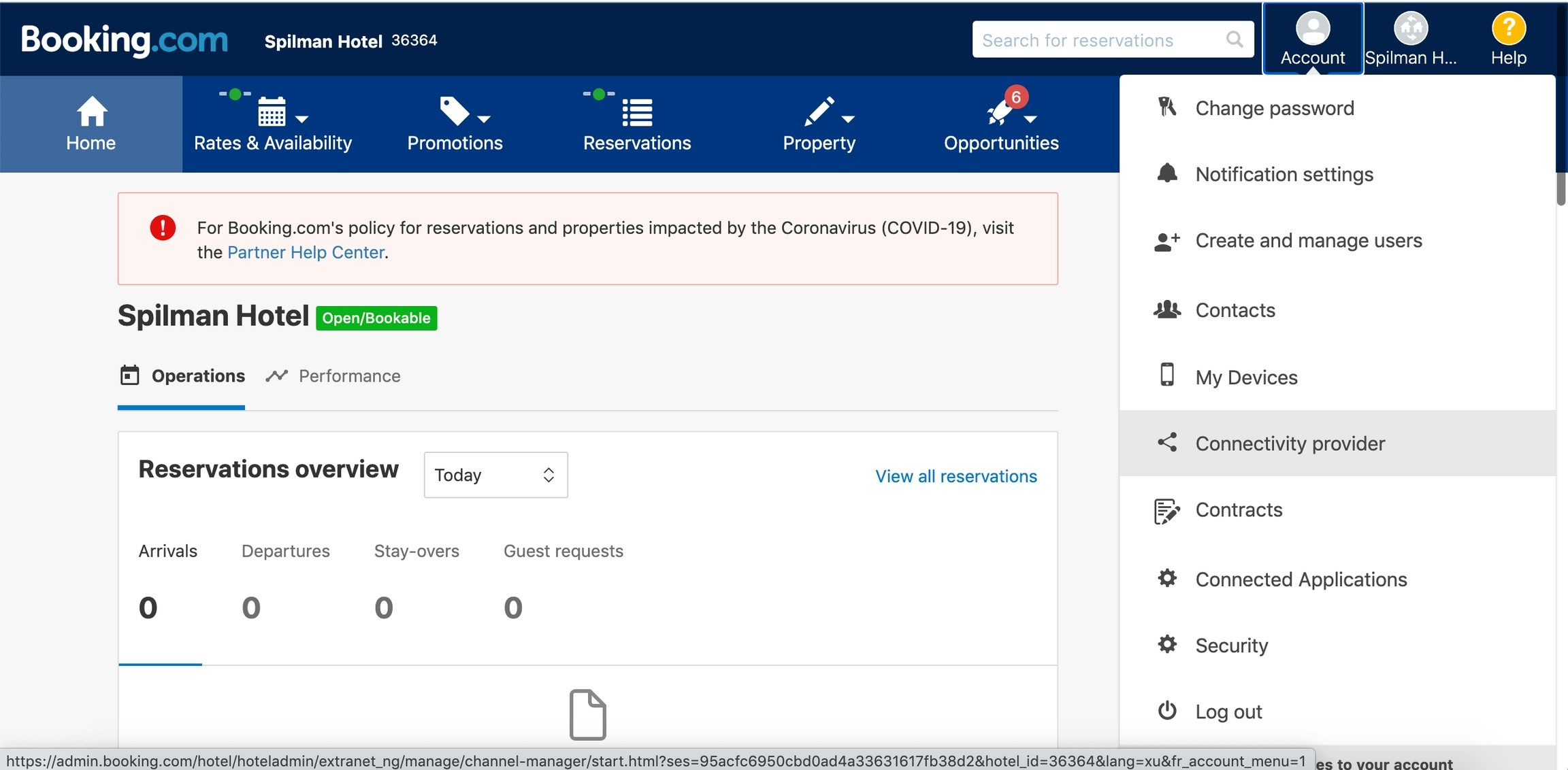
1. Copy the property code at the top of the navigation, you will need this later inside Bedmerge to connect the account
2. Click on Account > Connectivity Provider
 ### Choose Provider Screen
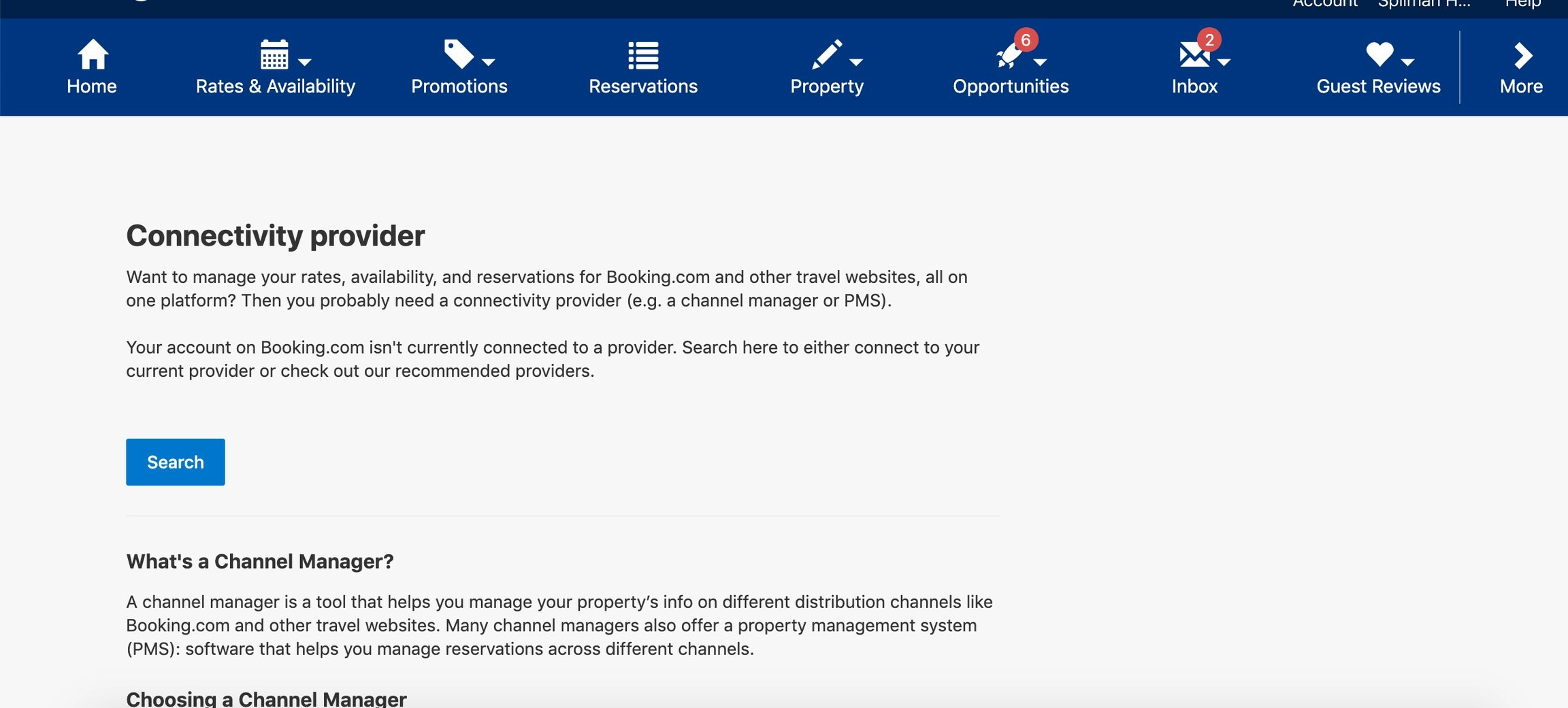
Click on "Search"
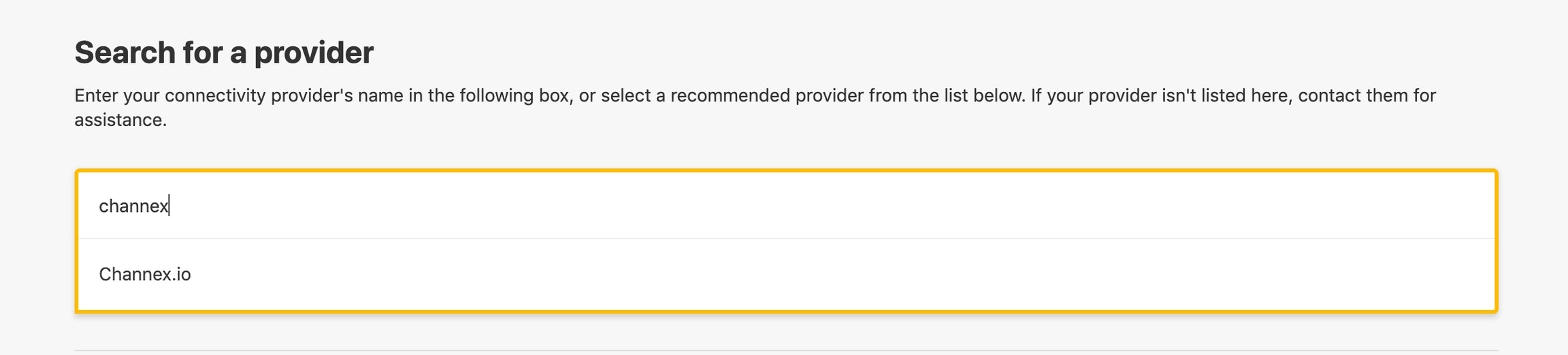
Type "Channex.io" and it will find Channex.io on the list.
You have to type the whole word "Channex.io" since it wont find it otherwise.
 Once Channex.io is selected on the list it will show the summary box, just click "Next"
 ### Agree the XML Service Agreement
Click on the checkbox to agree the terms and conditions and then the "Yes, I accept" button.
No other things needs to be done or completed on this form
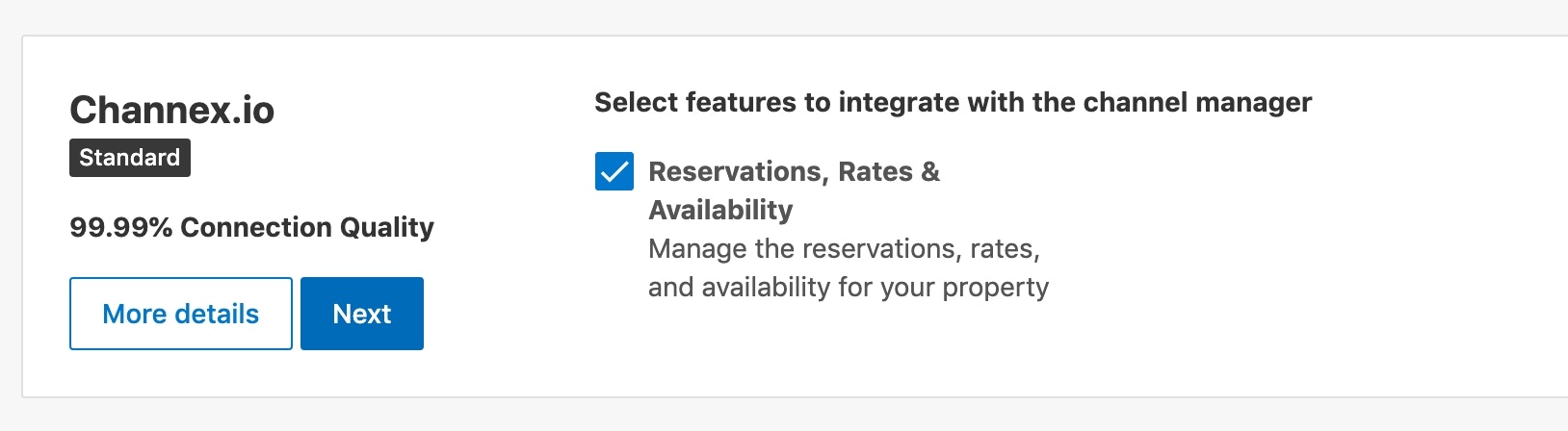 Now you will be in a waiting status, until Bedmerge accepts the connection
You can go to map the property in Bedmerge immediately even though Bedmerge has not accepted the property yet. But at this stage you cannot go live (just mapping)
Once you connect a channel manager to Booking.com you should check the settings of all derived rates to make sure the min stay or other settings are correct as they might be changed automatically by booking.com.
## Create Booking.com Channel in Bedmerge
Once booking.com connectivity provider is completed or in waiting mode you can start the connection and mapping. If you try before you will get an error since the property has not provided you access yet.
In Bedmerge, navigate to the channels page from the Rates menu, then click on "Channels".
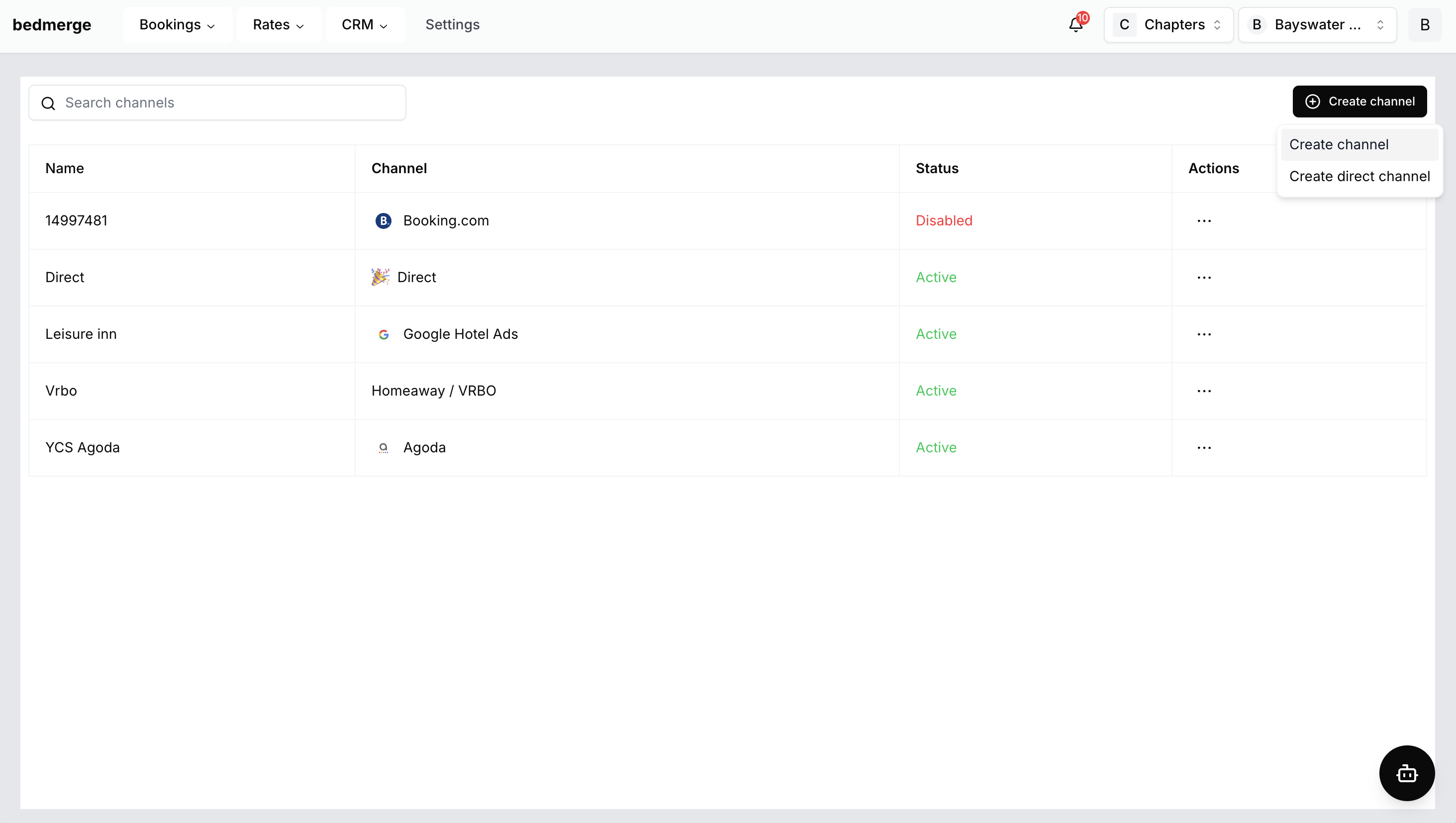
Click on the "Create channel" button to start a new connection
Select the channel "Booking.com" from the dropdown
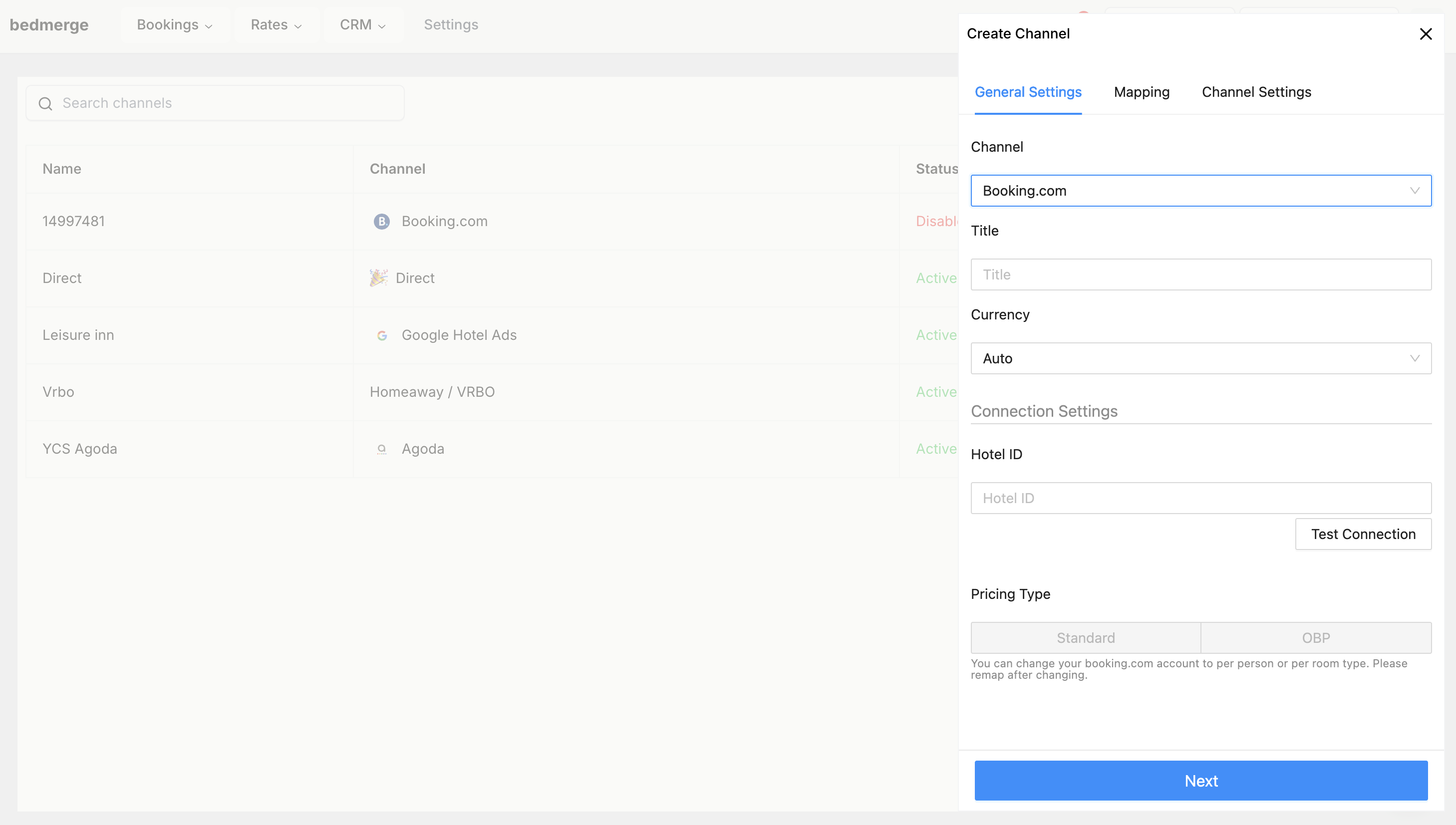 **Group**: if you have more than 1 group then please select the correct group where the property is located.
**Title**: Custom text to call this connection
**Currency**: Select the currency (defaults to "Auto")
**Hotel ID**: This is where you enter the property ID of the property from booking.com.
You can find property ID in booking.com extranet at the top of the screen next to the property name.
**Test Connection Button** - Checks if the property is accessible to map
**Pricing Type**: Choose between "Standard" or "OBP" (Occupancy Based Pricing)
You can change your booking.com account to per person or per room type. Please remap after changing.
Once the settings are filled and the test gives a positive result, click "Next" to move onto the mapping
## Mapping booking.com
Mapping is important that all rate plans be mapped, any non mapped rate plans or rooms will cause issues later. If a rate or room is not required anymore then please ask the property to delete it.
**Notes:**
On the left side you will see all the rooms and rates on the channel, and on the right side you can see what is mapped.
The Booking.com room type names are their default name, if you have added a custom name in the extranet then they are not visible. This is why we have also given the Room ID after the text.
Some properties like apartments can have multiple room types of the same name. It will be hard to know how to map unless you look at the ID and match to room internally on the extranet.
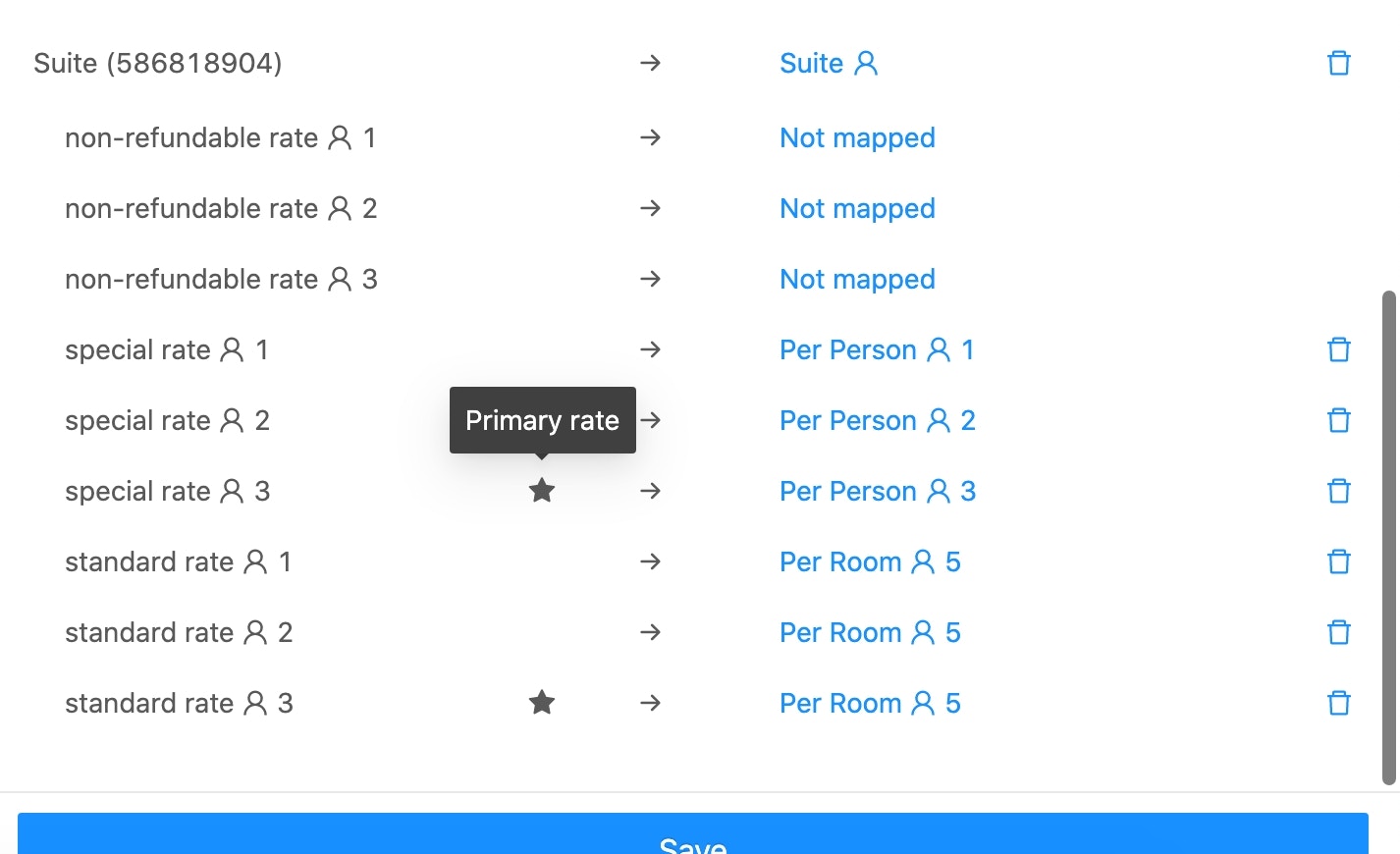 Once mapping is completed please save the channel by pressing the save button at the bottom
## Occupancy Based Mapping
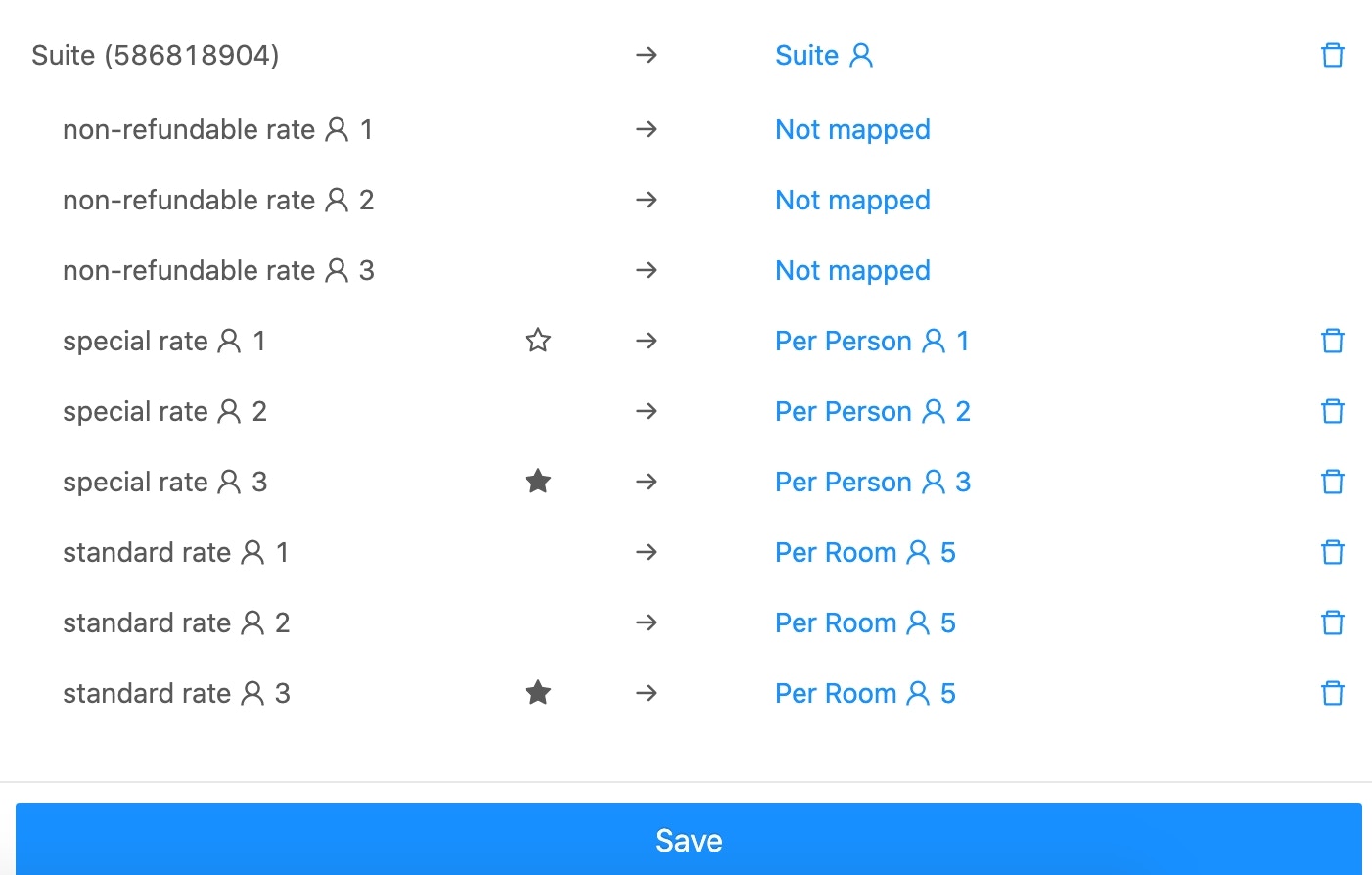
Booking can support occupancy based prices also, if this is supported then you can map each occupancy of a room type
**Primary Rate** - This will be the rate plan that sends the restrictions such as min stay or stop sell. Since it is only one rate plan in booking.com.
You can move your mouse over the other occupancy options and you can change the primary rate.
 ## Activate the Connection
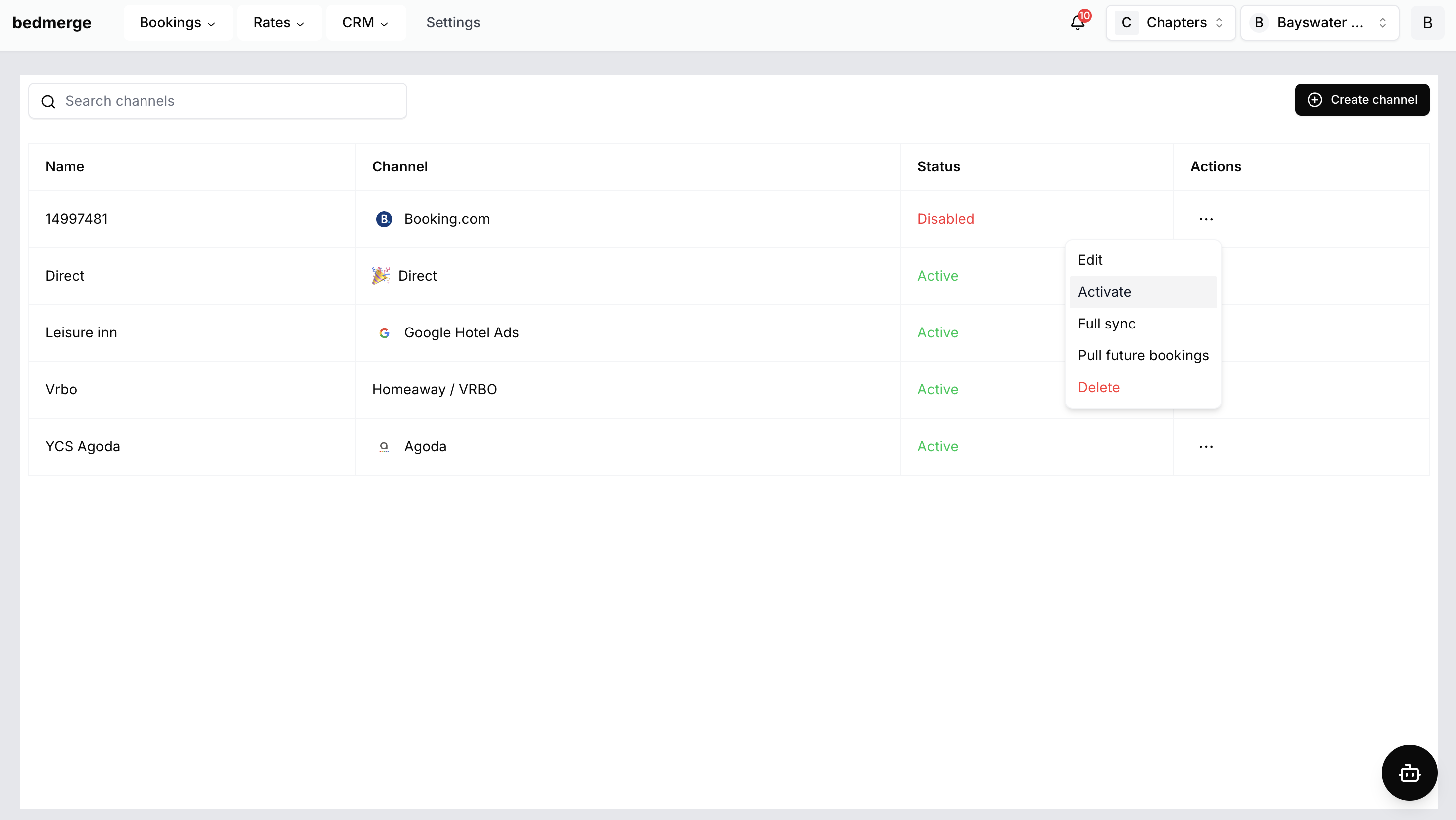
To activate please click on the "Actions" button (three dots) on the channel row and select "Activate"
 ## Pull Future Reservations
You can also pull all future reservations if you require from booking.com channel. This is useful in many instances especially with a new PMS setup.
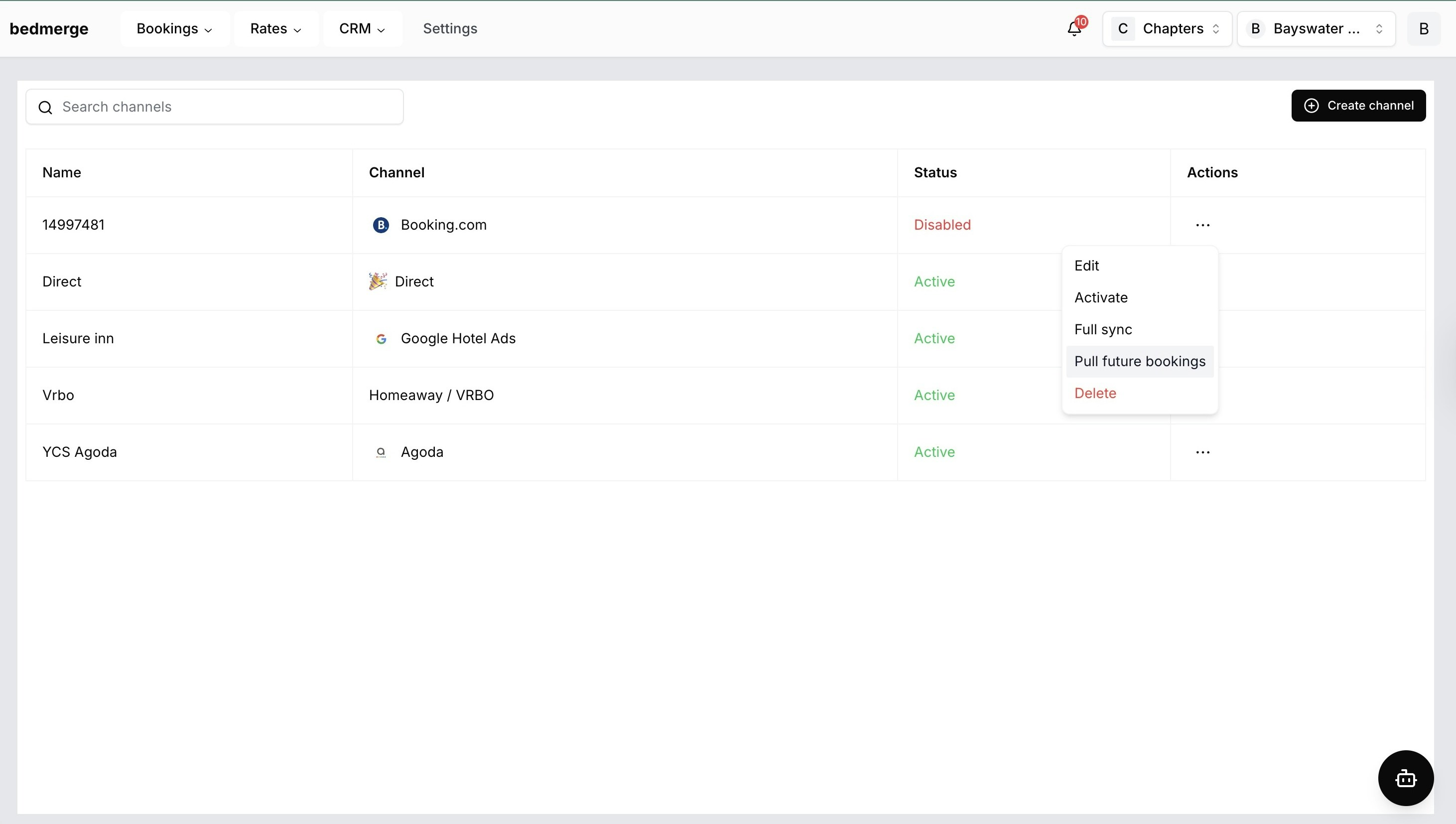
To pull future reservations, click on the "Actions" button (three dots) on the channel row and select "Pull future bookings"
 Importing bookings will not affect the availability in Bedmerge.
The data you get from imported bookings could lack some details compared to normal booking, it will not include extras, personal data and cleaning fees.
## Derived Rate Plans inside booking.com
Derived rates should not be mappable inside Bedmerge. If they have some or make new ones inside booking.com, it should work similar to promotions where it does not need mapping and the bookings will come back fine.
However, in some cases there are old versions of derived rates that will show in Bedmerge mapping as mappable rates. There are 2 solutions to this:
1. Map all rates even the derived ones, if you don't map then you will get unmapped booking errors
2. Ask the hotel to delete the derived rates inside booking.com and then they can make them again new. The new versions will not show as mappable and will work as expected.
# Expedia
Source: https://docs.bedmerge.com/channels/expedia
Connect to Expedia Group's distribution network
## Overview
Expedia Group operates multiple brands including Expedia.com, Hotels.com, Vrbo, Travelocity, Orbitz, and Hotwire. Connecting to Expedia through Bedmerge gives you access to all these platforms from one integration.
You need an active partnership agreement and EPC (Expedia Partner Central) access.
## Step 1: Enable Connectivity
Contact your Expedia account manager or connectivity team to enable channel manager access.
Tell Expedia you want to connect **Channex** as your channel manager
Expedia will enable API access and send your property ID
Connectivity approval typically takes 1-3 business days
Ensure your property profile is complete in Expedia Partner Central before requesting connectivity.
## Step 2: Create Expedia Channel
In Bedmerge, navigate to **Settings > Integrations > Channels**
* Click "Create New Channel"
* Select **"Expedia"**
* **Title**: Descriptive name (e.g., "Main Hotel - Expedia Group")
* **Property**: Select your property
* **Hotel ID**: Enter your Expedia property ID
Click "Test Connection" to verify setup
## Step 3: Map Rooms and Rates
After successful test, click the "Mapping" tab
Match each Bedmerge room to corresponding Expedia room type
For each room, map:
* Standard rates
* Non-refundable rates
* Package rates
* Member rates
Ensure all rooms and rates are mapped before saving
Expedia recommends offering at least one non-refundable rate 10-20% lower than flexible rates for better visibility.
## Step 4: Activate Channel
Verify all rooms and rates are correctly mapped
Check a few dates to ensure rates sync correctly
Click "Actions" > "Activate"
## Managing Bookings
All Expedia Group reservations appear in your **Bookings** tab:
* View bookings from all Expedia brands
* Track which brand generated each booking (Expedia.com, Hotels.com, etc.)
* Guest details and contact information
* Commission breakdown
* Payment model (Expedia Collect or Hotel Collect)
## Managing Rates
Update Expedia rates in the **Rates** tab:
* Set base rates that sync across all Expedia brands
* Non-refundable rates (10-20% discount recommended)
* Package rates with inclusions
* Seasonal pricing
**Rate Types**:
* **Expedia Collect**: Guest pays Expedia (lower commission)
* **Hotel Collect**: Guest pays property (higher commission)
## Expedia Group Brands
Your property appears on:
Primary platform
Accommodation specialist
Vacation rentals
Full travel service
Travel deals
Discount bookings
## Best Practices
Always offer non-refundable rates 10-20% lower than flexible rates for increased conversion.
Full property details and photos increase conversion by up to 30%.
Respond to reviews within 48 hours to maintain good standing.
## Troubleshooting
**Solutions**:
* Verify Hotel ID is correct
* Confirm connectivity is approved by Expedia
* Check Channex is authorized in Partner Central
**Solutions**:
* Verify channel is activated
* Check rate plan mapping
* Ensure dates are within booking window
**Solutions**:
* Check room and rate mapping
* Verify the booked room type is mapped
* Review booking import logs in Bedmerge
## Resources
* **Expedia Partner Central**: [https://www.expediapartnercentral.com](https://www.expediapartnercentral.com)
* **Channex Expedia Guide**: [https://docs.channex.io/channel-mapping-guides/expedia](https://docs.channex.io/channel-mapping-guides/expedia)
# Google Hotel Ads
Source: https://docs.bedmerge.com/channels/google-hotel-ads
Reach travelers on Google Search and Maps
## Overview
Google Hotel Ads displays your property directly in Google Search results and Google Maps when travelers search for accommodations. Drive commission-free direct bookings through cost-per-click advertising.
## Benefits
Billions of daily Google searches
Travelers actively searching for hotels
No OTA commission - pay only per click
Prominent in mobile search results
## Prerequisites
Create account at [Google Hotel Center](https://www.google.com/travel/hotels/businessprofile)
Enter property details, address, and photos
Complete verification (email, phone, or postcard)
Choose Channex as your integration method
## Setup in Bedmerge
Go to **Settings > Integrations > Channels**
* Select "Google Hotel Ads"
* Enter title and property
* Add Hotel ID from Google
* Set landing page URL
Verify connectivity and data flow
Enable the channel
## Pricing: Cost-Per-Click (No Commission!)
Unlike OTAs, Google charges **per click**, not per booking. You keep 100% of the booking value.
**What You Pay**:
* Set maximum CPC (cost per click) bid
* Pay only when traveler clicks to your site
* Actual CPC typically lower than max bid
* Control daily budget and spending
**Example ROI**:
```
OTA Booking: £150 - 15% commission = £127.50 net
Google Booking: £145 - £5 CPC = £140 net
Extra Profit: £12.50 per booking
```
## Managing Rates
Update rates in Bedmerge **Rates** tab:
* Rates sync to Google in real-time
* Show competitive pricing vs OTAs
* Beat OTA rates by 3-5% to attract clicks
* Seasonal adjustments
Price 3-5% lower than OTAs. The commission savings more than cover the discount.
## Managing Bookings
Track Google Hotel Ads performance in **Bookings** tab:
* View bookings driven by Google
* Track source with UTM parameters
* Calculate ROI per campaign
* Monitor conversion rates
## Campaign Management
### Budget Strategy
Begin with £10-20/day
Track clicks, bookings, ROI for 2-4 weeks
Max CPC = Booking Value × Conversion Rate × Target Margin
Increase budget for profitable campaigns
### Bidding Example
```
Average Booking: £300
Conversion Rate: 10%
Maximum CPC: £300 × 10% × 50% = £15
```
## Landing Page Requirements
Your booking page must:
Price must match Google ad price exactly
Allow immediate booking without extra steps
Responsive design for all devices
Load time under 3 seconds
HTTPS required for payments
Price mismatches between Google ads and landing page can result in account suspension.
## Performance Tracking
Monitor in **Bookings** tab:
How often property appears
Clicks to your site
Click-through rate
Average cost per click
Completed bookings
Return on ad spend
## Best Practices
Beat OTA rates by 5%. The 15% commission savings more than covers it.
Review campaign performance daily and adjust bids based on profitability.
Increase bids during high season, decrease during low occupancy.
## Resources
* **Google Hotel Center**: [https://www.google.com/travel/hotels/businessprofile](https://www.google.com/travel/hotels/businessprofile)
* **Channex Google Guide**: [https://docs.channex.io/google/google-hotel-ads](https://docs.channex.io/google/google-hotel-ads)
# Instant Booking Page
Source: https://docs.bedmerge.com/channels/instant-booking-page
Create your commission-free direct booking engine
## Overview
Instant Booking Page (IBP) is your built-in direct booking engine. Accept commission-free reservations directly from your website, social media, or marketing campaigns without paying OTA commissions.
Perfect landing page for Google Hotel Ads, social media campaigns, and email marketing - 0% commission.
## Benefits
Keep 100% of booking revenue
Launch in minutes
Match your brand colors and logo
Works on all devices
## Step 1: Initial Setup
Go to **Settings > Channels > Instant Booking Page**
* Toggle to "Active"
* Select your property
* Choose default currency
Your booking page URL:
```
https://book.channex.io/your-property-slug
```
Or set up custom domain
Connect payment processor:
* Stripe (recommended)
* Direct bank transfer
* Pay at property
## Step 2: Branding
### Logo and Colors
* Recommended: 300x100px PNG
* Transparent background
* Under 500KB
* Primary: Main buttons and accents
* Secondary: Highlights and links
* Background: Page background
* Text: Primary text color
### Property Information
Add essential details:
* Property name and description
* Address and contact info
* Check-in/check-out times
* Cancellation policies
* House rules
### Photos
1920x1080px - Main banner image
1200x800px - Property and room photos
* High resolution and professional
* Well-lit and properly framed
* Show key features and selling points
## Step 3: Room Configuration
Each room displays with:
* Room name and description
* Occupancy limits
* Room photos
* Amenities
* Real-time pricing
### Rate Plans
Configure multiple rate options:
Flexible cancellation with standard policy
10-20% discount, no refunds
Room + extras (breakfast, parking, spa)
Automatic discounts:
* 7+ nights: 10% off
* 14+ nights: 15% off
* 30+ nights: 20% off
## Step 4: Payment Setup
### Stripe Integration (Recommended)
Sign up at [stripe.com](https://stripe.com)
Navigate to Developers > API Keys
Enter in IBP settings:
* Publishable Key
* Secret Key
Enable test mode first
Switch to live mode
### Payment Options
Total at booking
Partial now, rest at check-in
Pay on arrival
## Managing Bookings
All IBP reservations appear in **Bookings** tab:
* Real-time booking notifications
* Guest details and special requests
* Payment status
* Confirmation emails sent automatically
### Automated Emails
* Immediate booking confirmation
* Payment receipt
* Pre-arrival reminder (3 days before)
* Check-in instructions
## Managing Rates
Update IBP rates in **Rates** tab:
* Base rates sync automatically
* Occupancy-based pricing
* Length of stay discounts
* Seasonal rates
* Last-minute deals
**Dynamic Pricing**:
* Pulls from your rate calendar
* Updates in real-time
* Applies restrictions automatically
## Marketing Your IBP
### Distribution Channels
Embed or link from your site
Share on Facebook, Instagram
Include in newsletters
Use as landing page
For printed materials
Send to inquiries
### Website Integration
```html theme={null}
Book Now
```
```html theme={null}
```
## Conversion Optimization
Professional images are the #1 factor in booking decisions.
Beat OTA rates by 5-10% - your commission savings cover it.
Display reviews prominently. 90% of travelers read reviews before booking.
IBP loads in under 2 seconds. Compress photos for best performance.
Transparent cancellation and payment policies build trust.
## Performance Tracking
View metrics in **Bookings** tab:
Total visits
Date searches
Completed bookings
Views to bookings
Total booking value
Average booking value
## Best Practices
IBP pulls from your **Rates** tab in real-time. Keep your calendar current.
Respond to special requests within 24 hours.
"Book Direct and Save 10%" converts better than generic CTAs.
Email guests after checkout requesting reviews.
## Troubleshooting
**Solutions**:
* Check availability is open in **Rates** tab
* Verify stop-sell is not enabled
* Check allocation hasn't been exhausted
**Solutions**:
* Verify rate calendar is updated
* Check tax calculation settings
* Clear browser cache
**Solutions**:
* Verify Stripe keys are correct
* Check Stripe account is activated
* Ensure test mode is disabled
## Resources
* **Channex IBP Guide**: [https://docs.channex.io/channel-mapping-guides/instant-booking-page](https://docs.channex.io/channel-mapping-guides/instant-booking-page)
* **Stripe Docs**: [https://stripe.com/docs](https://stripe.com/docs)
# Channels
Source: https://docs.bedmerge.com/features/rates/channels
Connect and manage your distribution channels
## Overview
The Channels page is where you connect, configure, and manage all your distribution channels. Connect to Booking.com, Airbnb, Expedia, Agoda, Google Hotel Ads, and set up your direct booking engine.
## Connected Channels
View all your active channels:
* **Channel Name**: Booking.com, Airbnb, etc.
* **Status**: Active, inactive, or syncing
* **Bookings**: Total reservations from channel
* **Revenue**: Total income from channel
* **Last Sync**: When rates/availability last updated
* **Actions**: Edit, activate, deactivate
## Adding a New Channel
Navigate to **Rates** > **Channels** > **Add Channel**
Choose from available OTAs:
* Booking.com
* Airbnb
* Expedia
* Agoda
* Google Hotel Ads
* Instant Booking Page (Direct)
Follow channel-specific setup:
* Enter credentials
* Map rooms and rates
* Test connection
Enable the channel to start syncing
## Available Channels
**Commission**: 15-18%
World's largest accommodation platform. Best for international travelers.
[Setup Guide →](/channels/booking-com)
**Commission**: 15%
Leading vacation rental marketplace. Best for leisure and extended stays.
[Setup Guide →](/channels/airbnb)
**Commission**: 18-25%
Includes Expedia.com, Hotels.com, Vrbo. Best for US market.
[Setup Guide →](/channels/expedia)
**Commission**: 15-25%
Leading in Asia-Pacific. Best for Asian travelers.
[Setup Guide →](/channels/agoda)
**Commission**: 0% (pay-per-click)
Reach travelers on Google Search and Maps.
[Setup Guide →](/channels/google-hotel-ads)
**Commission**: 0%
Your own booking engine. Highest profit margin.
[Setup Guide →](/channels/instant-booking-page)
## Channel Management
### Edit Channel Settings
Click any channel to:
* **View Mapping**: See room and rate connections
* **Update Credentials**: Change API keys or login
* **Adjust Settings**: Channel-specific configuration
* **Review Sync Log**: See recent updates
* **Test Connection**: Verify channel is working
### Activate/Deactivate
Enables:
* Rate synchronization
* Availability updates
* Booking imports
* Two-way communication
Stops:
* New bookings
* Rate updates
* Availability sync
Existing bookings remain active
## Channel Performance
Track each channel's contribution:
Total reservations
Gross income
Fees paid
After commissions
Average Daily Rate
Views to bookings
## Sync Status
Monitor channel synchronization:
* **Last Synced**: Timestamp of last update
* **Status**:
* ✅ **Synced**: Up to date
* ⏳ **Syncing**: Update in progress
* ⚠️ **Warning**: Minor issues
* ❌ **Error**: Sync failed
* **Next Sync**: When next update is scheduled
### Sync Logs
View recent synchronization activity:
* **Rate Updates**: Price changes pushed
* **Availability Changes**: Inventory updates
* **Booking Imports**: Reservations received
* **Errors**: Failed syncs with details
## Channel-Specific Settings
### Booking.com
* **Derived Rates**: Enable/disable derived rate handling
* **Primary Rate**: Which occupancy sends restrictions
* **Genius Program**: Enable Genius rates
* **Pull Reservations**: Import existing future bookings
### Airbnb
* **Min Stay Type**: Arrival vs Through
* **Price Per Extra Guest**: Set incremental fee
* **Instant Book**: Enable instant booking
* **Professional Photos**: Upload high-quality images
### Expedia
* **Payment Model**: Expedia Collect vs Hotel Collect
* **Rate Plans**: Map multiple rate types
* **Expedia Rewards**: Enable loyalty program rates
### Agoda
* **Multi-Occupancy**: Configure per-person pricing
* **YCS Settings**: Link to YCS configuration
### Google Hotel Ads
* **Landing Page**: Set booking page URL
* **CPC Bid**: Set cost-per-click maximum
* **Daily Budget**: Control ad spend
* **Tracking**: UTM parameters for analytics
### Instant Booking Page
* **Branding**: Logo, colors, custom domain
* **Payment**: Stripe configuration
* **Policies**: Cancellation, terms, privacy
* **Email Templates**: Confirmation messages
## Rate Parity Management
Ensure compliant pricing across channels:
Most OTA contracts require rate parity - same rates across all channels (except direct bookings which can be lower).
### Parity Exceptions
* **Direct Bookings**: Can be 5-10% lower (no commission to cover)
* **Member Rates**: Loyalty program discounts allowed
* **Package Rates**: Bundled services not compared
* **Length of Stay**: Weekly/monthly discounts exempt
## Best Practices
Don't rely on one channel. Aim for: 30% Booking.com, 25% Airbnb, 20% Expedia, 15% Direct, 10% Others.
Check sync status daily to catch and resolve errors quickly.
Direct bookings are most profitable. Promote your Instant Booking Page actively.
Make test bookings on each channel quarterly to verify the full flow works.
When you change passwords or API keys, update immediately in Bedmerge.
## Troubleshooting
**Common causes**:
* Expired credentials
* Unmapped rooms or rates
* Channel API downtime
* Rate parity violations
**Solutions**:
* Check sync log for specific error
* Verify credentials are current
* Review channel mapping
* Contact channel support if needed
**Symptoms**: Reservation doesn't appear in Bookings
**Solutions**:
* Verify channel is active
* Check room/rate mapping
* Review booking import log
* Check if booking was cancelled immediately
**Symptoms**: Rate changes don't appear on channel
**Solutions**:
* Verify channel is active (not paused)
* Check date is within channel's booking window
* Review sync log for errors
* Test connection to channel
## Channel Setup Guides
Full setup guide
OAuth connection
Expedia Group
YCS setup
CPC campaigns
Booking engine