

Request connection to Bedmerge in booking extranet
Login to the admin for the property here: https://account.booking.com/This step is best done by the property since booking.com have 2 step security with passcodes sent to the phone.
- Copy the property code at the top of the navigation, you will need this later inside Bedmerge to connect the account
- Click on Account > Connectivity Provider
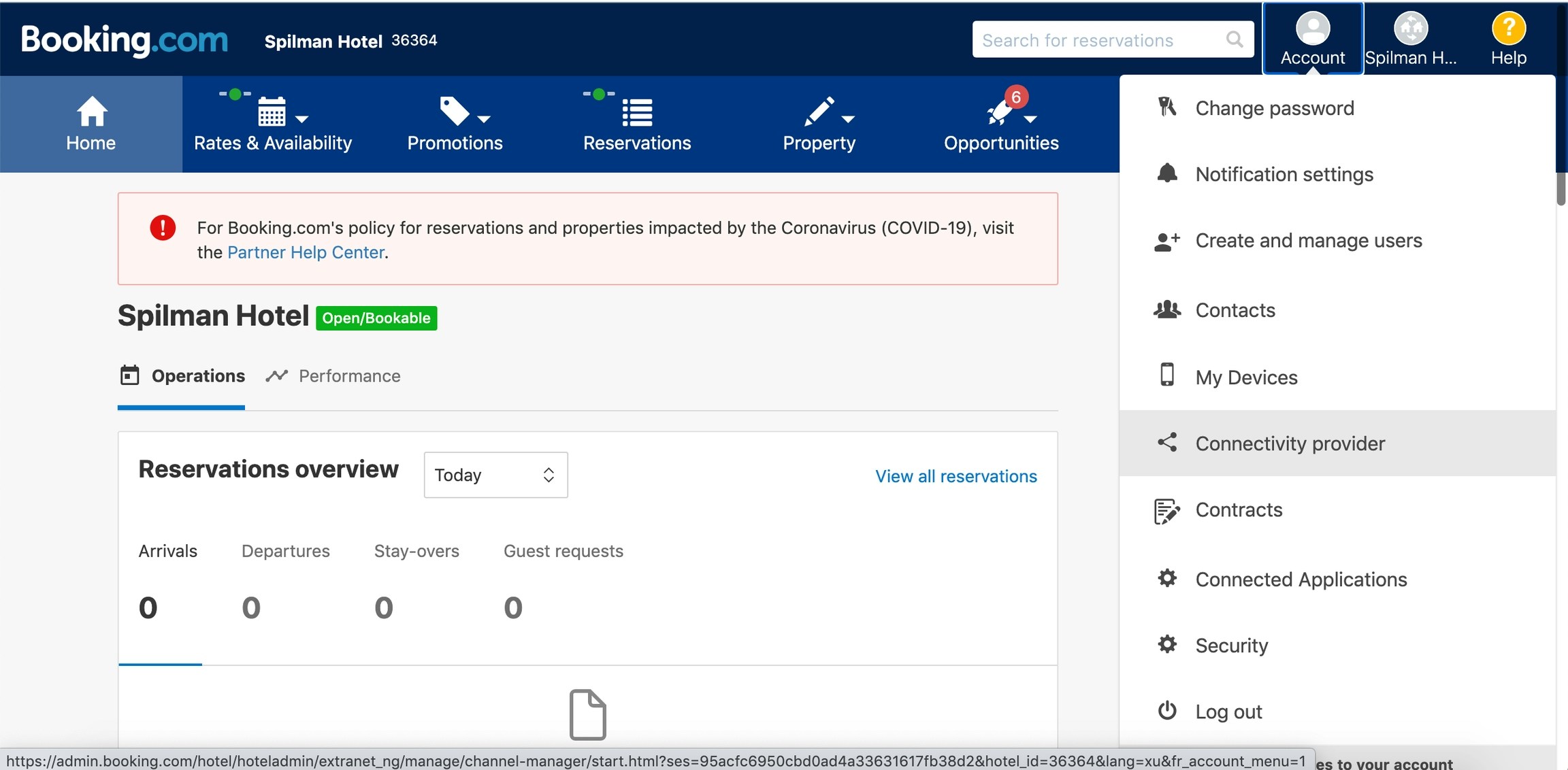
Choose Provider Screen
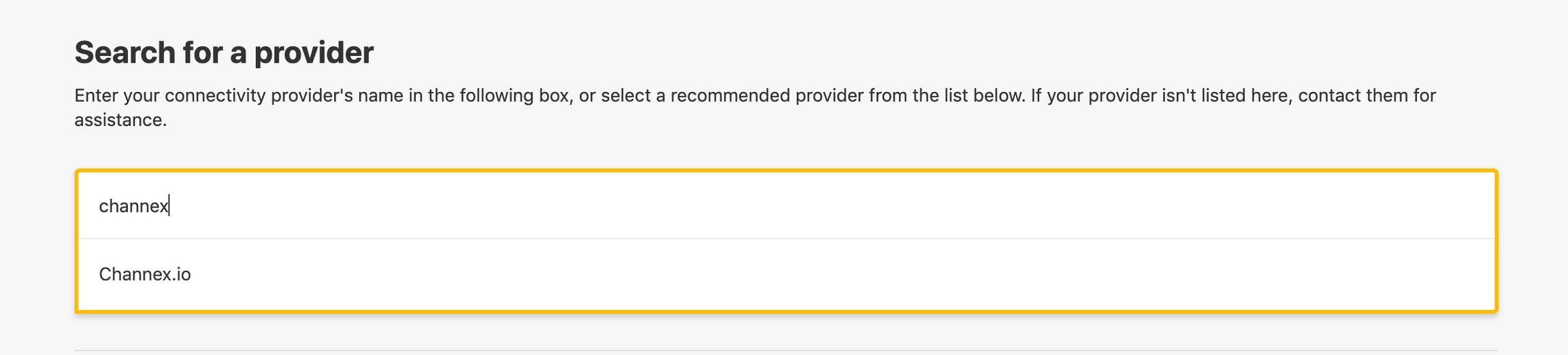
Click on “Search” Type “Channex.io” and it will find Channex.io on the list.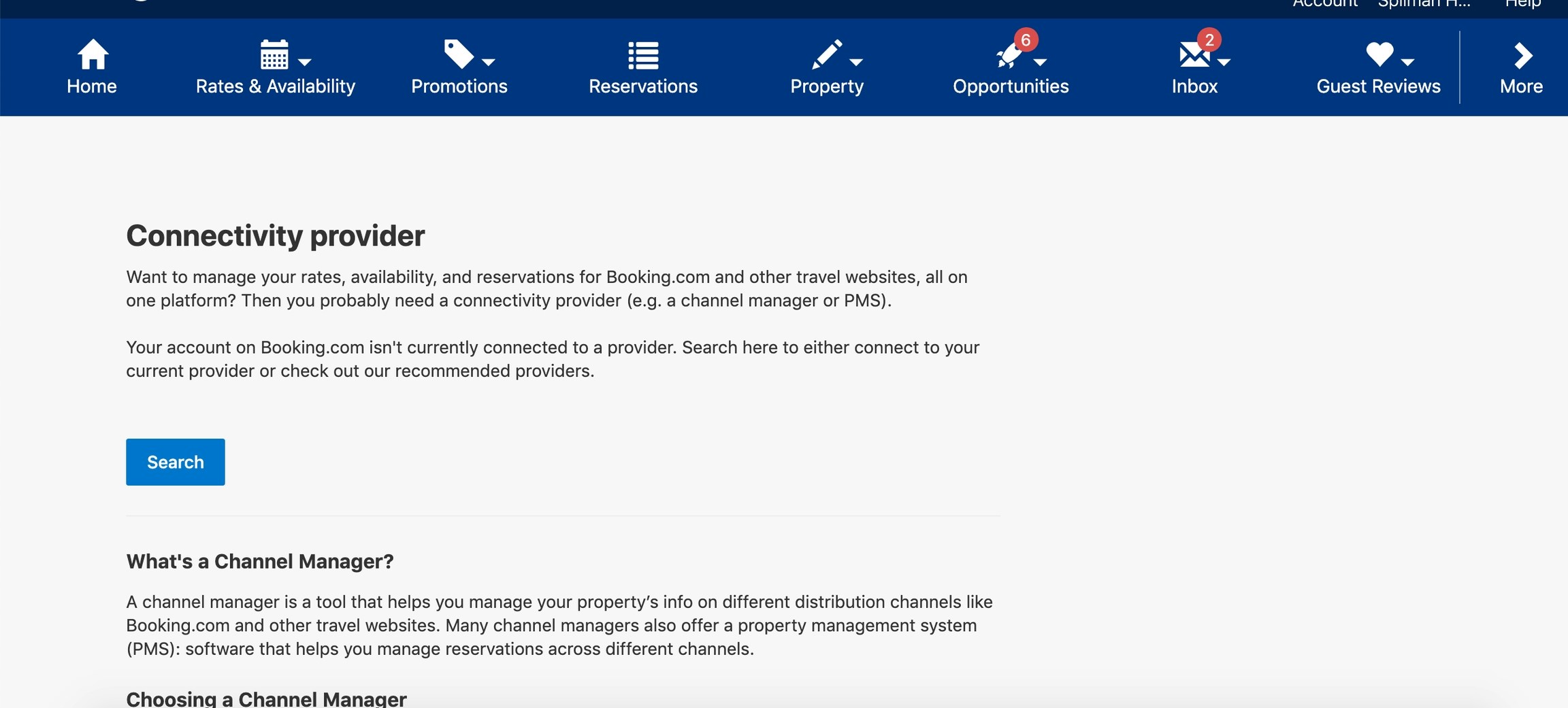
Agree the XML Service Agreement
Click on the checkbox to agree the terms and conditions and then the “Yes, I accept” button. No other things needs to be done or completed on this form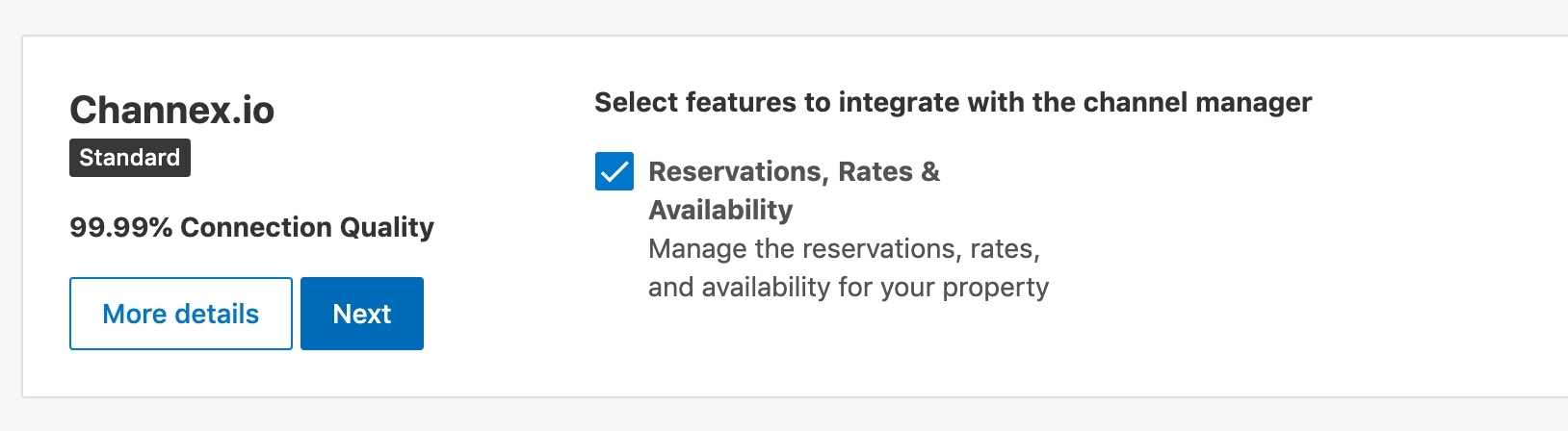
You can go to map the property in Bedmerge immediately even though Bedmerge has not accepted the property yet. But at this stage you cannot go live (just mapping)
Create Booking.com Channel in Bedmerge
Once booking.com connectivity provider is completed or in waiting mode you can start the connection and mapping. If you try before you will get an error since the property has not provided you access yet. In Bedmerge, navigate to the channels page from the Rates menu, then click on “Channels”. Click on the “Create channel” button to start a new connection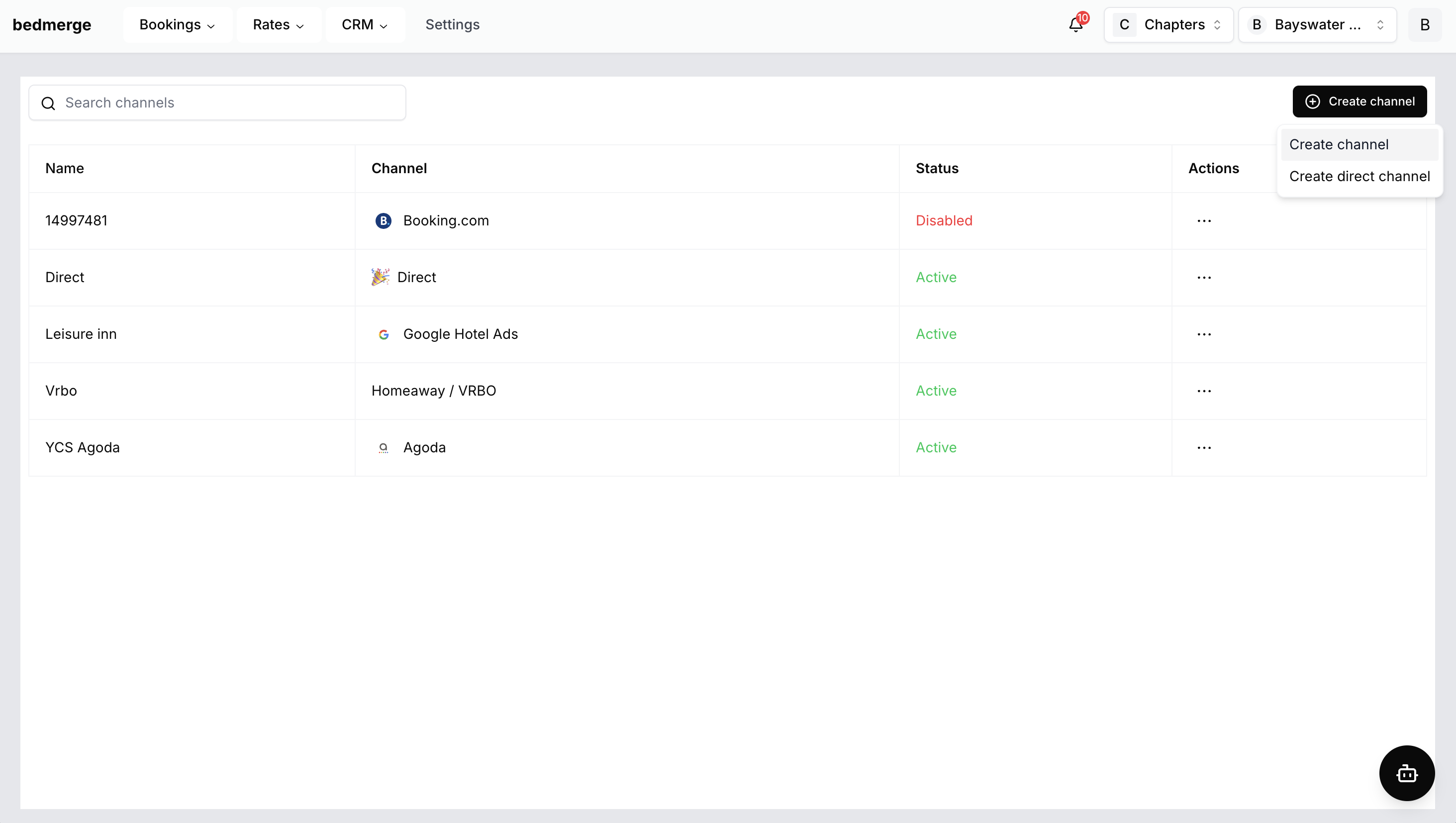
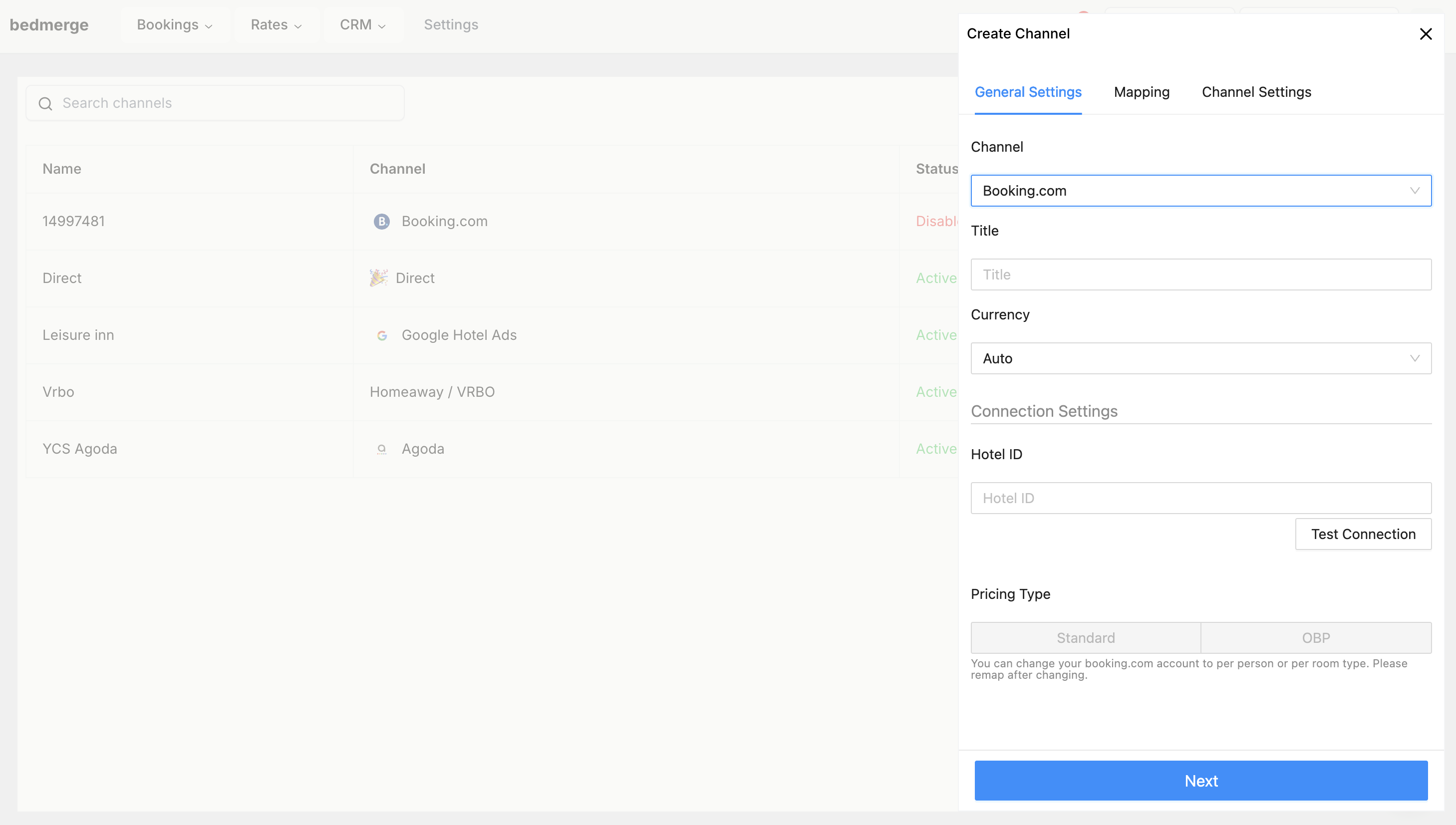
You can find property ID in booking.com extranet at the top of the screen next to the property name.
You can change your booking.com account to per person or per room type. Please remap after changing.
Mapping booking.com
Mapping is important that all rate plans be mapped, any non mapped rate plans or rooms will cause issues later. If a rate or room is not required anymore then please ask the property to delete it. Notes: On the left side you will see all the rooms and rates on the channel, and on the right side you can see what is mapped. The Booking.com room type names are their default name, if you have added a custom name in the extranet then they are not visible. This is why we have also given the Room ID after the text.Some properties like apartments can have multiple room types of the same name. It will be hard to know how to map unless you look at the ID and match to room internally on the extranet.
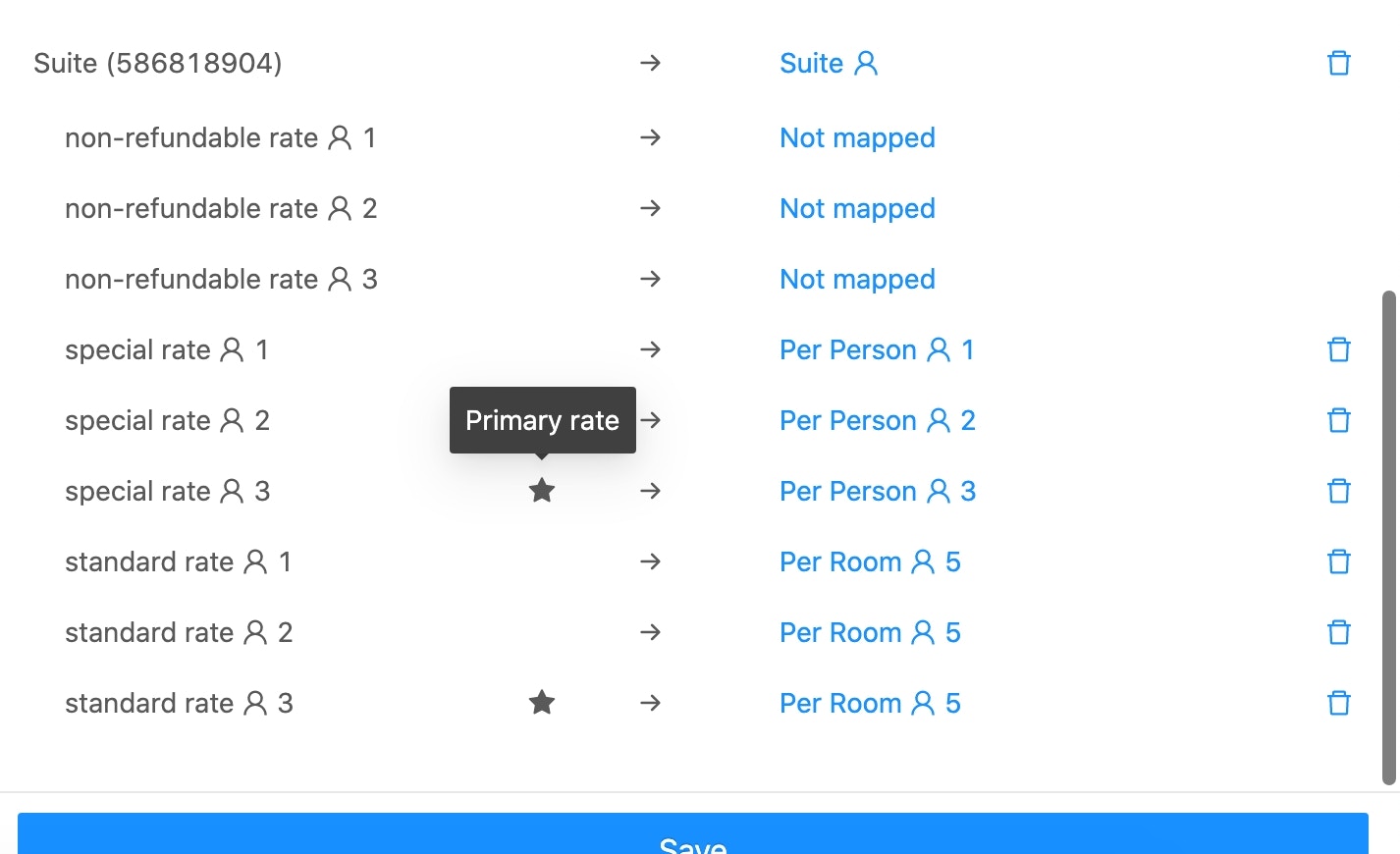
Occupancy Based Mapping
Booking can support occupancy based prices also, if this is supported then you can map each occupancy of a room type Primary Rate - This will be the rate plan that sends the restrictions such as min stay or stop sell. Since it is only one rate plan in booking.com. You can move your mouse over the other occupancy options and you can change the primary rate.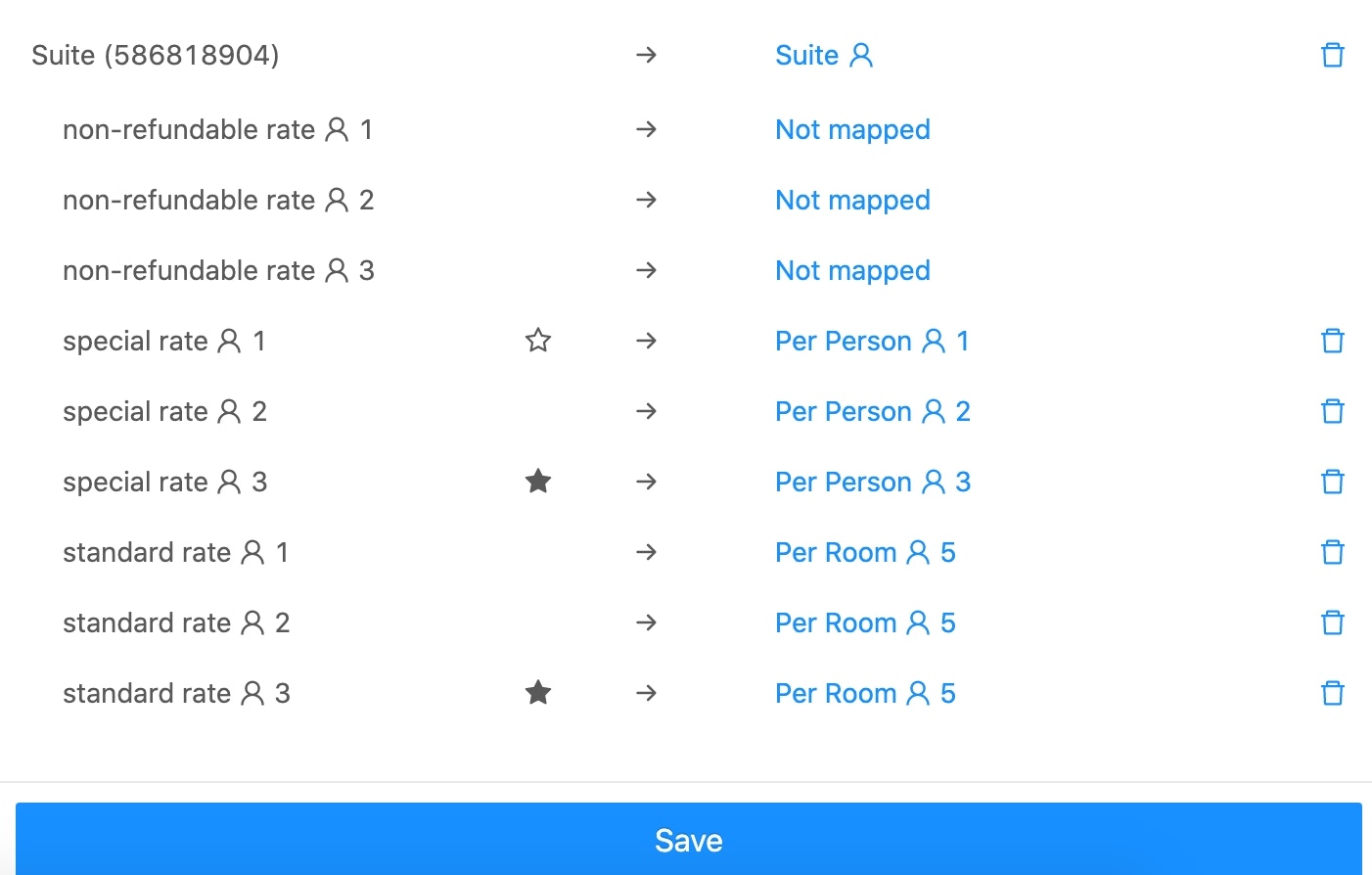
Activate the Connection
To activate please click on the “Actions” button (three dots) on the channel row and select “Activate”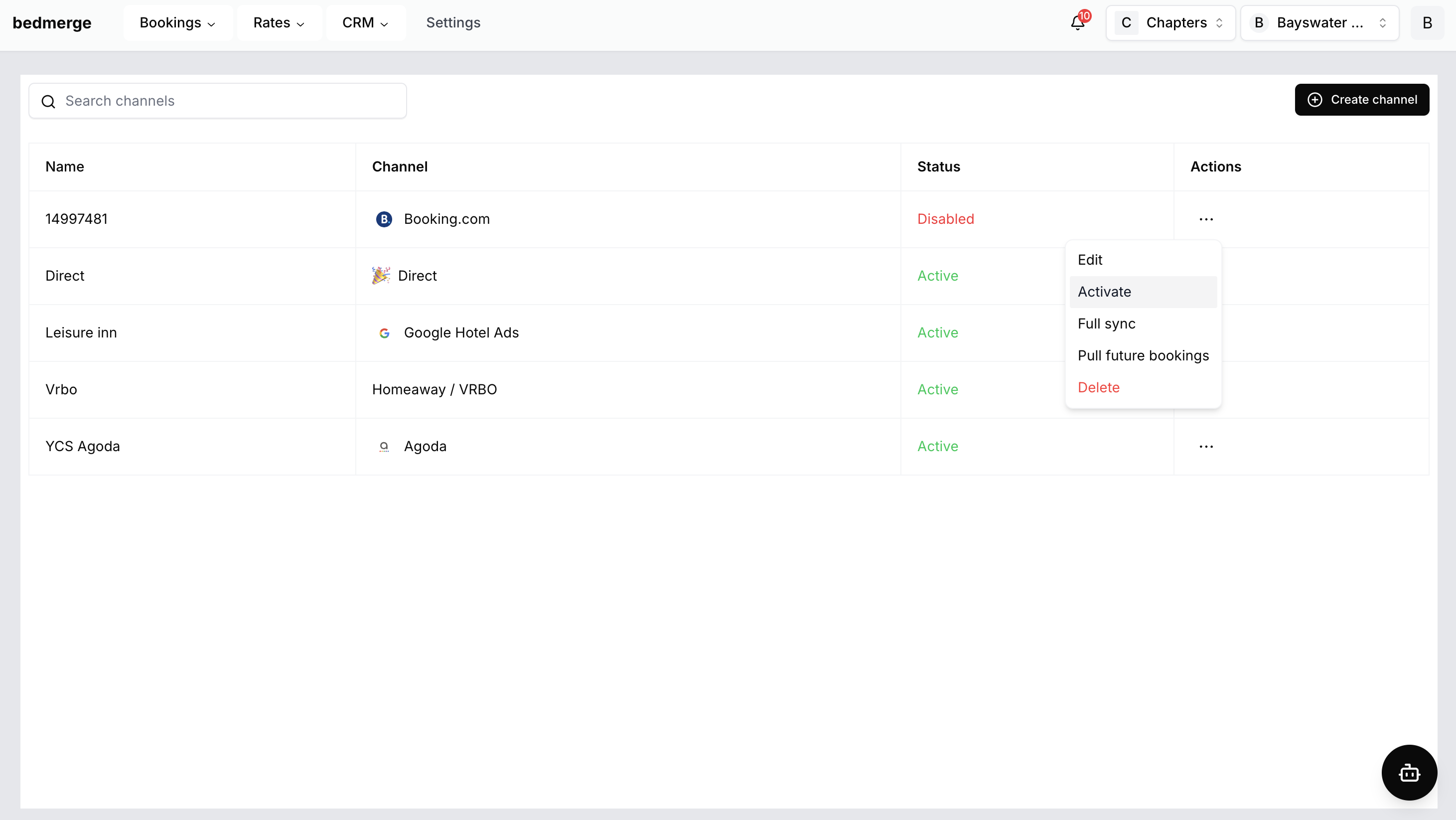
Pull Future Reservations
You can also pull all future reservations if you require from booking.com channel. This is useful in many instances especially with a new PMS setup. To pull future reservations, click on the “Actions” button (three dots) on the channel row and select “Pull future bookings”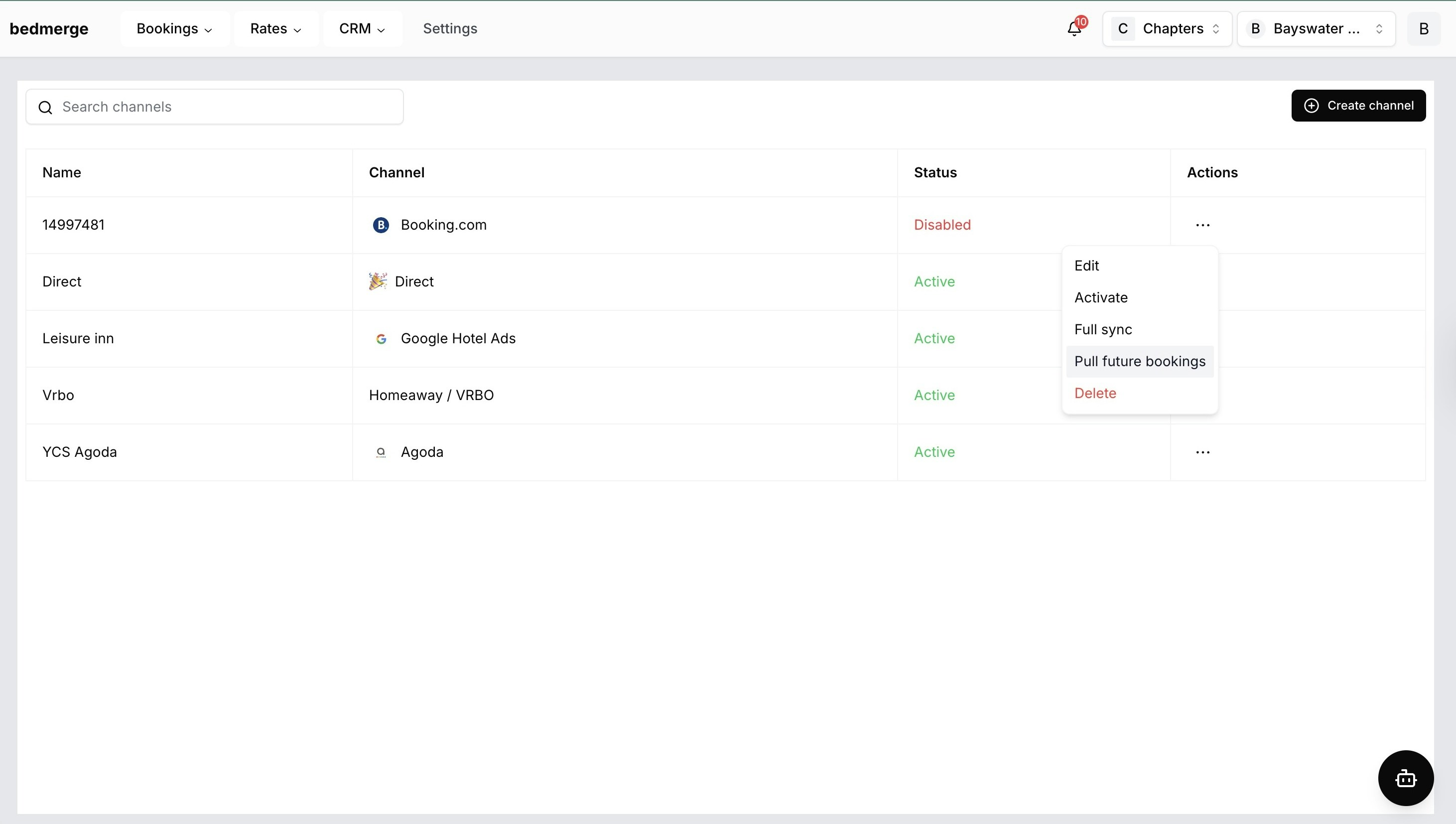
Importing bookings will not affect the availability in Bedmerge.The data you get from imported bookings could lack some details compared to normal booking, it will not include extras, personal data and cleaning fees.
Derived Rate Plans inside booking.com
Derived rates should not be mappable inside Bedmerge. If they have some or make new ones inside booking.com, it should work similar to promotions where it does not need mapping and the bookings will come back fine. However, in some cases there are old versions of derived rates that will show in Bedmerge mapping as mappable rates. There are 2 solutions to this:- Map all rates even the derived ones, if you don’t map then you will get unmapped booking errors
- Ask the hotel to delete the derived rates inside booking.com and then they can make them again new. The new versions will not show as mappable and will work as expected.